

Hi Bruno,
I know this might not be exactly what you are looking for, but perhaps you will like the “Chameleon” toolbar item. With it, you can at least put two sets of connections in the toolbar. To add it, simple right-click on the Toolbar and then select "Customize Toolbar...". Then just select the the “Chameleon” toolbar item and drag it to the toolbar.
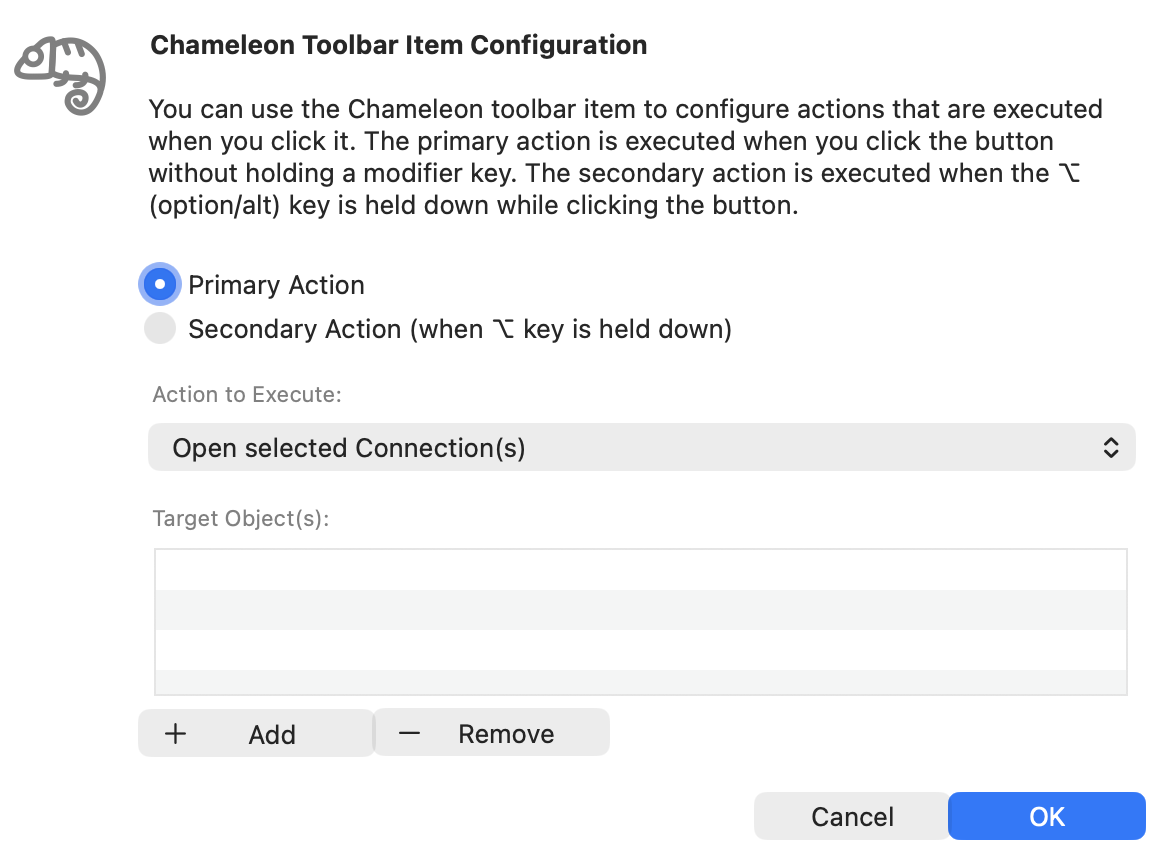
Does that help?
Bruno Lancaster
Hi Royal TSX team,
First off, thank you for creating such a powerful and flexible remote‑connection manager. I use Royal TSX regularly and appreciate its reliability and rich feature set.
Feature idea
When working on longer sessions I often need to open the same 2-3-4-5 SSH/RDP/SFTP connections repeatedly. Currently I have to locate each entry in the navigation pane, which can be cumbersome for two reasons:
Shoulder‑surfing concerns – I keep the navigation panel hidden to prevent others from seeing the list of hosts.
Auto‑hide inconvenience – The “auto‑hide navigation panel” option works, but the panel still pops out each time I move the mouse to the side, interrupting my workflow.
It would be extremely helpful to be able to drag a connection onto the toolbar and then launch it with a single click. In practice this would give me (and other users):
Possible implementation ideas
Allow dragging a connection (or a group) from the navigation pane onto the existing toolbar area, creating a persistent icon/button.
Right‑click the toolbar to manage these shortcuts (rename, reorder, remove).
Optionally support multiple toolbars or a “favorites” dropdown for even more organization.
I believe this enhancement would improve productivity for power users who rely on Royal TSX for repetitive remote‑access tasks while maintaining security‑focused UI settings.
Thank you for considering this suggestion. I look forward to seeing Royal TSX continue to evolve!